
AI is now part of everyday editing. It speeds up rough cuts, cleans audio, adds captions, matches colors, and exports versions for every platform. In 2025, the question is not whether to use AI. It is which AI editor fits your workflow and budget. This guide compares leading tools with clear pros and cons so you can choose with confidence. The focus is on real results, not hype. You will see where each tool is strong, where it is weak, and who should use it.
How We Chose the Winners
We rated tools on the parts of editing that save the most time and improve output.
Editing power and stability. Can the tool handle long timelines and complex assets without crashes.
AI features that actually help. Transcript edits, captioning accuracy, reframing, object removal, highlight detection.
Output quality and export presets. Clean renders, color management, social presets, and batch exports.
Learning curve and workflow fit. Can a beginner learn it fast and can a pro move quickly.
Collaboration and cloud features. Review links, version history, shared libraries, and cloud backup.
Pricing, value, and licensing terms. Free trials, fair tiers, and clarity on rights for generated or stock assets.
Privacy and brand safety. Data handling, model training disclosures, and watermarks.
Quick Verdicts for Different Needs
- Best overall: Adobe Premiere Pro with Firefly features
- Best for beginners: Wondershare Filmora
- Best for social video and Shorts: CapCut
- Best for advanced grading and finishing: DaVinci Resolve Studio with Neural Engine
- Best for podcasters and talking-head edits: Descript
- Best budget: Veed free or low tier for browser-first workflows
- Best for teams and agencies: Runway for rapid ideation and versioning
Top Picks and Deep Dives
1. Adobe Premiere Pro with Firefly and AI Assist
Premiere Pro is a full editor used by creators, agencies, and broadcasters. It integrates with After Effects, Audition, and Photoshop, so it fits complex pipelines.
Standout AI features
- Auto transcription and captioning with good punctuation
- Edit from transcript with speaker detection
- Audio Auto Ducking and Enhance Speech for voice clarity
- Auto Reframe for 9:16, 1:1, and 16:9 with motion tracking
- Text based color match suggestions through Color Adjustments
- Generative fill and object removal via roundtrip with After Effects and Photoshop
- AI b-roll suggestions through stock integrations and search
Where it shines
- Strong for multi video projects and brand kits
- Reliable export presets for YouTube, Shorts, and Reels
- Deep plugin ecosystem and integration with Frame.io for review
- Scales from beginner to broadcast
Limitations and Pricing
- Subscription cost adds up for solo creators
- Heavy on lower spec laptops and older GPUs
- Premiere Pro single app subscription. Better value in Creative Cloud bundles if you also use Photoshop or After Effects.
Best for
Editors who need one suite for everything and want mature AI inside a pro timeline.
2. DaVinci Resolve Studio with Neural Engine
Resolve combines edit, color, Fusion VFX, Fairlight audio, and delivery. The Neural Engine adds powerful assistive AI while keeping pro grade color tools.
Standout AI features
- Magic Mask for quick subject isolation
- Smart Reframe and auto aspect versions
- Scene cut detection for fast conform
- Voice isolation and dialogue leveler
- Color match and look creation assist
- Text based edits for interviews with transcript
Where it shines
- Industry leading color grading with efficient GPU use
- Stable on long projects and mixed codecs
- One app for edit, color, audio, and VFX
- Strong free version to start
Limitations and Pricing
- Learning curve is steeper for non editors
- Collaboration setup is more technical
- Free version is generous. Studio is a one time license, good value for power users.
Best for
Creators who care about color and finishing quality and want long term ownership.
3. CapCut
CapCut is popular for social video because it is fast, friendly, and works on desktop and mobile. It has strong templates for Shorts, Reels, and TikTok.
Standout AI features
- Auto captions with style presets
- Auto cut and beat sync for music
- Smart remove background for people
- Resize and reframe for platforms
- Template driven effects and transitions
- Basic noise removal for voice
Where it shines
- Speed for short form content
- Mobile to desktop continuity
- Template library saves time for trends
Limitations and Pricing
- Limited advanced color and audio tools
- Watermarks or limits on some assets in free tier
- Free plan is useful. Paid tiers unlock higher export quality and more assets.
Best for
Shorts first creators who need to ship daily and follow trends.
4. Wondershare Filmora
Filmora is aimed at beginners who want quick results with simple controls. It brings accessible AI that works without the stress of pro interfaces.
Standout AI features
- AI Copywriting for titles and descriptions inside the app
- Auto beat sync and music driven cuts
- Auto captioning and subtitle styling
- AI portrait and background removal
- Color match and preset looks
Where it shines
- Low learning curve and friendly UI
- Fast performance on modest hardware
- Good library of effects for YouTube intros and outros
Limitations and Pricing
- Less control for complex edits
- Export and licensing nuances need review on some assets
- Annual or lifetime options. Watch for watermark rules and asset licensing terms.
Best for
Beginners and small teams that want speed without deep technical setup.
5. Descript
Descript is built around the transcript. You edit by changing text and the timeline follows. It is ideal for talking-head videos, tutorials, and podcasts.
Standout AI features
- Accurate transcription and speaker labels
- Delete filler words and shorten silences with one click
- Studio Sound voice cleanup
- Overdub for quick pickups and script fixes
- Screen recording and multitrack editing from transcript
Where it shines
- Fast turnarounds for educational and business content
- Clear workflows for repurposing clips and reels
- Great for solo creators and remote teams
Limitations and Pricing
- Limited advanced grading and compositing
- Best for speech driven content, not heavy b-roll films
- Free tier for tests. Paid plans unlock longer exports and team features.
Best for
Podcasters, educators, and tutorial creators who want transcript-first speed.
6. Veed
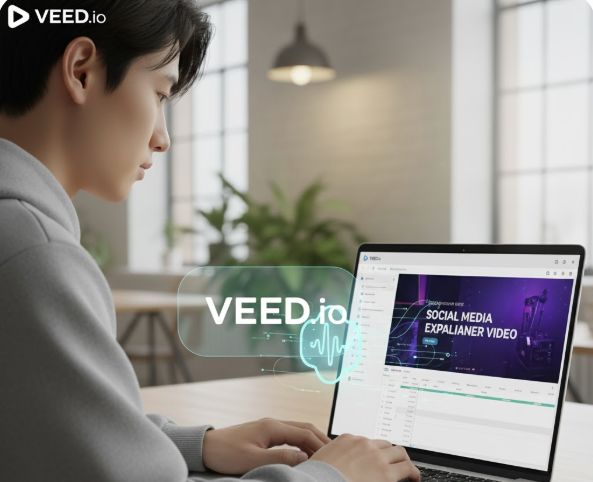
Veed runs in the browser and is built for social teams. It works on any modern machine and keeps the learning curve low.
Standout AI features
- Auto subtitle with good language support
- Remove background, brand kit, and templates
- Resize for multiple platforms in one project
- Quick voice cleanup and music library
- Clip creation and batch exports
Where it shines
- No install and fast collaboration
- Easy brand consistency across multiple formats
- Good for agencies that create many small assets
Limitations and Pricing
- Performance depends on connection and browser
- Less control for high end finishing
- Free tier with limits. Paid tiers add exports, brand kits, and collaboration.
Best for
Browser-first workflows, virtual assistants, and small agencies.
7. Runway
Runway is strong for ideation, text to video drafts, and content aware edits. It is not a full NLE replacement, but it pairs well with others.
Standout AI features
- Text to video and image to video for concept drafts
- Background removal and subject matte tools
- Object tracking and content aware fill
- Style transfer and look exploration
- Green screen without a green screen
Where it shines
- Rapid experimentation and creative direction
- Generative shots for b-roll or transitions
- Pairs well with Premiere or Resolve for finishing
Limitations and Pricing
- Not ideal for long timelines or complex audio
- Generative results need human curation
- Metered usage or plans based on credits and features.
Best for
Teams that need ideas, iterations, and AI assists before a final edit elsewhere.
Emerging Contender to Watch
Keep an eye on browser-first suites that combine script, stock search, voice, and editing in one flow. New tools are racing to make one click social packages with captions, reframes, and brand kits. Test these for drafts, then finish in a pro NLE.
Feature Breakdown: What Actually Saves Time
Auto captioning vs true transcript editing. Captions help discovery, but editing from the transcript is the real time saver. You cut sentences and the timeline updates.
Smart reframing and multi aspect exports. Set safe zones once and output 16:9, 1:1, and 9:16 without manual crops.
Silence detection and timeline cleanup. Remove dead air, tighten pacing, and keep viewers engaged.
Scene detection and highlight selection. Create a rough cut from long footage so you focus on story, not scrubbing.
Color grading assist. Use AI to match shots and create a base look, then refine by hand for consistency.
Audio cleanup and voice enhancement. Clear voice drives retention. Use voice isolation and loudness standards.
Stock and b-roll recommendations. Search by meaning instead of exact keywords. Always check licensing.
Team review links and versioning. Share a link, collect comments, lock versions, and avoid lost files.
Choosing by Workflow
YouTube long form creators. Use Premiere or Resolve for structure, captions, color, and reliable exports. Add Runway for b-roll ideation when needed.
Shorts first creators and social teams. Use CapCut or Veed for speed, templates, and batch platform outputs. Keep a brand kit for fonts and colors.
Talking head and podcast editors. Use Descript for transcript based edits, then finish sound and color in Premiere or Resolve if needed.
Client work, agencies, and collaboration. Use Premiere with Frame.io or Veed with shared libraries for fast review and delivery.
Filmmakers needing grading and conform. Use Resolve Studio to control color, conform, and audio while using AI to handle masks, reframes, and cleanup.
Privacy, Copyright, and Brand Safety
Check whether the tool trains on your uploads. Confirm how your data is stored and whether third parties can access it. Review rights for generated media and stock. Some plans include editorial use only, while others cover commercial use. Avoid watermarks and confirm music licensing. Keep release forms when filming people. If you process client files, store them in a controlled workspace and use versioned exports.
Pricing Snapshot and Value Tips
Start with a free trial to test your workflow.
Compare annual vs monthly and factor hidden costs like stock licenses or storage.
If you only edit short clips, a browser tool may be enough.
If you need color, audio, and VFX control, invest in Resolve Studio or Premiere.
Use student, educator, or bundle discounts when available.
Build export presets and brand kits early so you do not waste time later.
Actionable Setup Checklist
- Install or open your chosen tool and create a new project preset for your channel.
- Set brand kit with fonts, colors, caption style, and lower third templates.
- Turn on auto transcription for fast search and edits.
- Create export presets for 16:9, 1:1, and 9:16 with platform safe areas.
- Build a music and sound effect bin with license notes.
- Test voice cleanup on one sample clip and save the effect chain.
- Use scene detection to build a rough cut from long footage.
- Add captions, check names and terms, and burn in only when needed.
- Color match shots, then apply a base look and adjust skin tones.
- Export a review link, collect comments, lock a cut, then render finals in batches.
Conclusion
Pick one tool that fits your main output, learn it well, and standardize presets. If you post daily Shorts, choose CapCut or Veed. If you deliver client work or long form videos, Premiere or Resolve will scale with you. Add Runway or similar for ideation when you need fresh visuals. Test two options for a week, then commit for a month. The right AI editor is the one that saves you hours while keeping your style intact.